

Dropbox for Business accounts can make use of Dropbox’s Single Sign-On (SSO) features. This allows for centralized administration of users instead of having to track down each user’s known application accounts and modifying settings there. You can read the FAQ on Dropbox’s SSO information on their website: https://www.dropbox.com/help/1921/en#providers SimpleSAMLphp is a flexible SAML 2.0 IdP or SP which allows admins to quickly deploy a previously complex server with minimal configuration. This article assumes you’re using SimpleSAMLphp and have the ‘mail’ attribute defined (this is defined by default if you’ve integrated SimpleSAMLphp with any sort of Active Directory querying).
Dropbox does not currently support Single Log-Out (SLO)
Configure Dropbox for Business Authentication
Start by logging in to your Dropbox for Business account and access the Admin Console. In the left navigation menu, click on the Authentication menu item. Sign in URL – This is the actual page users will be redirected to during log in. Typically this URL for SimpleSAMLphp is something like https://<domain>/<SimpleSAMLphp root>/saml2/idp/SSOService.php X.509 Certificate – This is the public certificate from your SimpleSAMLphp IdP to verify signed and encrypted SAML assertions.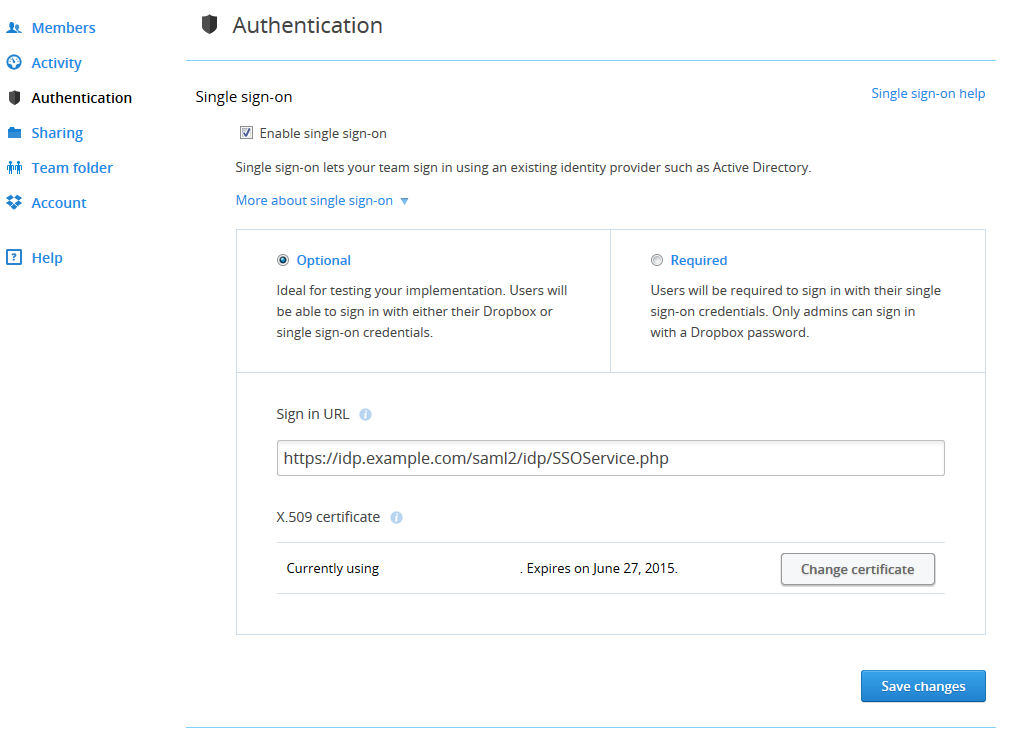
Configure SimpleSAMLphp Metadata
You now need to edit your <SimpleSAMLphp root>/metadata/saml20-sp-remote.php file on your server. This file configures SAML 2.0 Service Providers (SP) and allows them communication rights with this SAML 2.0 Identity Provider (IdP). Add in this exact configuration array to the metadata file (above or below existing entries is fine).$metadata[‘Dropbox’] = array ( ‘AssertionConsumerService’ => ‘https://www.dropbox.com/saml_login’, ‘simplesaml.attributes’ => true, ‘simplesaml.nameidattribute’ => ‘mail’, ‘NameIDFormat’ => ‘urn:oasis:names:tc:SAML:1.1:nameid-format:emailAddress’, );Here’s a quick run-through of what this metadata file does. $metadata[‘Dropbox’] – This lets our IdP know to expect Dropbox as a SAML 2.0 SP AssertionConsumerService – This is where the user gets sent after successful authentication (Dropbox provides this URL) simplesaml.attributes – This tells SimpleSAMLphp that we intend on providing a custom SAML attribute simplesaml.nameidattribute – Specifies which custom SimpleSAMLphp attribute we want to use as the primary identifier NameID NameIDFormat – Specifies the format of the primary identifier NameID (Dropbox requries a special format, listed in the FAQ link above)

Leave a Reply
You must be logged in to post a comment.